

- July 16, 2026
- Tejhaksh
- 0 Comments
- Domain Name System, Uncategorized
What Is Domain Name System (DNS)? Everything You Need to Know About DNS
What Is the Domain Name System (DNS)?
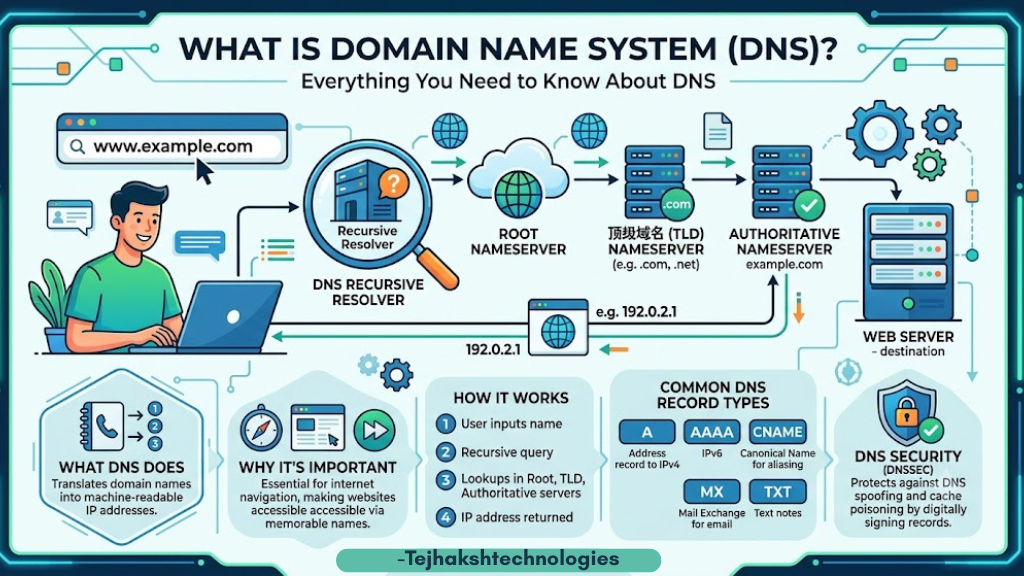
The Domain Name System (DNS) is an essential internet service that converts a website’s domain name into its IP address. In simple words, DNS works like a translator between humans and computers.
When you type a website address such as www.google.com or www.youtube.com into your browser, your computer cannot understand the website name directly. Instead, DNS quickly finds the website’s correct IP address and sends it to your browser. Your browser then uses that IP address to connect to the website, allowing it to load within seconds.
Why is DNS important?
Every website has its own IP address, which computers can easily understand. However, it is difficult for humans to remember such long strings of numbers. DNS solves this problem. It converts the website name into an IP address, so we only need to remember the website’s name rather than its number.
Without DNS, we would have to memorize the IP address for every website we wanted to visit, making internet usage extremely difficult.
A Simple Example (Phone Contacts)
Think of DNS like the contact list on your mobile phone.
Suppose you want to call your friend Rahul. Do you memorize and dial his 10-digit mobile number every time? No. You simply tap on the name “Rahul,” and your phone automatically finds his number and places the call.
DNS works in exactly the same way. When you type `google.com`, DNS finds the correct IP address for that name and sends it to your browser. Your browser then uses that IP address to open the website.
This is why DNS is often referred to as the “Phonebook of the Internet.”
How Does DNS Work?
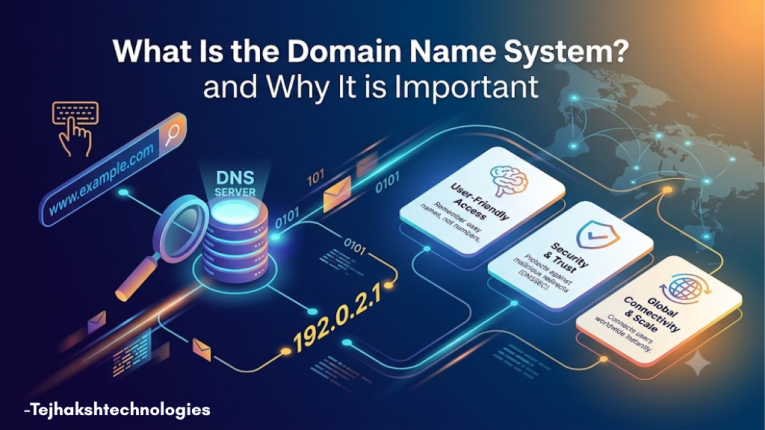
Whenever you type a website address like www.google.com into your browser and press Enter, your browser needs to find the website’s IP address before it can load the webpage. This entire process is handled by the Domain Name System (DNS), and it usually takes only a few milliseconds.
Step-by-Step: How Domain Name System Works
Step 1: Enter the Website Name
You enter a website address (such as www.google.com) into your web browser.
Step 2: DNS Resolver Receives the Request
Your browser sends the request to a DNS Resolver. The resolver first checks its cache (temporary memory) to see if it already has the website’s IP address.
Step 3: Resolver Searches DNS Servers
If the IP address is not found in the cache, the resolver searches the DNS hierarchy.
- It first contacts the Root Server.
- The Root Server directs it to the correct Top-Level Domain (TLD) Server, such as .com, .org, or .net.
- The TLD Server then points the resolver to the website’s Authoritative DNS Server.
Step 4: IP Address Is Found
The Authoritative DNS Server contains the website’s DNS records and returns the correct IP address to the DNS Resolver.
Step 5: Website Opens
The DNS Resolver then sends the correct IP address to your browser. Your browser then connects to the website’s web server, and the webpage appears on your screen.
Simple DNS Working Flow
[User] -> Enter Website Name -> [Web Browser] -> [DNS Resolver] -> [Root Server] -> [TLD Server (.com/.org/.net)] -> [Authoritative DNS Server] -> Returns IP Address -> Browser Connects to Website -> Website OpensDNS Structure
The Domain Name System (DNS) follows a hierarchical (tree-like) structure. Each part of a domain name has a specific purpose and helps browsers locate the correct website quickly.
(.)
Root Zone
│
.com
Top-Level Domain (TLD)
│
google
Second-Level Domain (SLD)
│
maps
Subdomain
1. Root Zone (.)
The Root Zone is the highest level of the DNS hierarchy. It is represented by a hidden dot (.) at the end of every domain name. Its job is to direct DNS requests to the correct Top-Level Domain (TLD) server.
Example: google.com. (the final dot is hidden in web browsers).
2. Top-Level Domain (TLD)
A Top-Level Domain (TLD) is the last part of a domain name, which appears after the final dot. It identifies the type or country of the website.
Examples:
.com – Commercial websites
.org – Organizations
.net – Network-related websites
.edu – Educational institutions
.in – India
.uk – United Kingdom
3. Second-Level Domain (SLD)
The Second-Level Domain (SLD) is the unique name registered by a person, business, or organization. It appears just before the TLD and represents the main identity of the website.
Example:
In google.com, google is the Second-Level Domain (SLD).
4. Subdomain
A Subdomain is an additional part added before the main domain name to create separate sections or services within the same website. It helps organize different content without registering a new domain.
Examples:
mail.google.com
maps.google.com
blog.example.com
Subdomains are commonly used for blogs, support pages, online stores, email services, and other dedicated sections of a website.
Types of Domains
There are different types of domain names available on the internet. Each type serves a specific purpose and helps identify a website based on its category, location, or organization.
1. gTLD (Generic Top-Level Domain)
A Generic Top-Level Domain (gTLD) is the most common type of domain extension. These domains are open for registration, which means anyone can purchase and use them for personal, business, or commercial websites.
Examples:
.com – Commercial websites
.net – Network and technology-related websites
.org – Non-profit organizations and communities
Example Domain: example.com
2. ccTLD (Country Code Top-Level Domain)
A Country Code Top-Level Domain (ccTLD) is a two-letter domain extension assigned to a specific country or region. These domains are mainly used by businesses, organizations, or individuals who want to target users in a particular country.
Examples:
.in – India
.uk – United Kingdom
.ca – Canada
.au – Australia
Example Domain: example.in
3. sTLD (Sponsored Top-Level Domain)
A Sponsored Top-Level Domain (sTLD) is a special type of domain extension created for specific organizations or communities. Only eligible institutions can register these domains.
Examples:
.edu – Educational institutions
.gov – Government organizations
.mil – Military organizations
Example Domain: university.edu
4. New gTLD (New Generic Top-Level Domain)
New gTLDs are modern domain extensions introduced to provide more meaningful and industry-specific website names. These domains help businesses and individuals create unique online identities.
Examples:
.tech – Technology websites
.store – Online stores
.online – Online businesses
.photography – Photography websites
.agency – Agencies and consulting firms
.cafe – Cafes and restaurants
Example Domain: mybusiness.tech
Types of DNS Servers
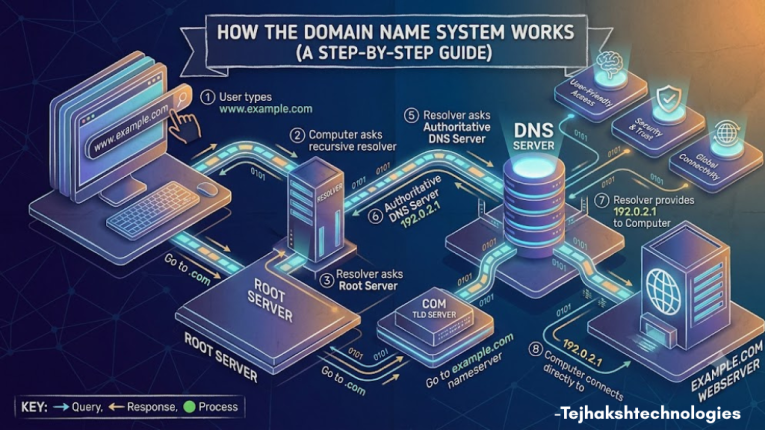
The Domain Name System (DNS) uses different types of servers to find the correct IP address of a website. Each server has a specific role in the DNS lookup process. Together, they help your browser open websites quickly and accurately.
1. DNS Resolver (Recursive Resolver)
The DNS Resolver is the first server that receives your request when you enter a website address in your browser. It acts as a middleman between your computer and the DNS system.
If the resolver already has the website’s IP address stored in its cache, it returns the result immediately. Otherwise, it starts searching other DNS servers to find the correct IP address.
Role: Receives the user’s request and finds the website’s IP address.
2. Root Server
The Root Server is the first server contacted by the DNS Resolver if the IP address is not available in the cache.
It doesn’t know the exact IP address of the website. Instead, it looks at the domain extension (such as .com, .org, or .net) and directs the resolver to the correct Top-Level Domain (TLD) Server.
Role: Directs the resolver to the appropriate TLD Server.
3. TLD (Top-Level Domain) Server
The TLD Server manages information for all domain names with the same extension.
For example, if you search for google.com, the .com TLD Server identifies which Authoritative DNS Server contains the DNS records for google.com.
Role: Points the resolver to the correct Authoritative DNS Server.
4. Authoritative DNS Server
The Authoritative DNS Server is the final server in the DNS lookup process. It stores the original DNS records of a domain, including its correct IP address.
Once it finds the requested information, it sends the IP address back to the DNS Resolver, which then forwards it to your browser. Your browser uses this IP address to connect to the website.
Role: Provides the final and correct IP address of the website.
DNS Server Flow
User -> DNS Resolver -> Root Serve -> TLD Server -> Authoritative DNS Server -> Returns IP Address -> Website Opens
What is a DNS Resolver?
A DNS Resolver is the first server that receives your website request. It finds the correct IP address and sends it back to your browser so the website can open.
Role
The primary function of a DNS resolver is to perform recursive translation. It handles the burden of communicating across multiple servers on the web so your individual web browser doesn’t have to perform dozens of complicated steps just to load a site.
Public DNS examples
While your Internet Service Provider automatically sets up a default resolver, users frequently swap to high-speed, secure public alternatives:
- Google DNS: 8.8.8.8
- Cloudflare DNS: 1.1.1.1
- Quad9 DNS: 9.9.9.9
DNS Caching
To keep the internet snappy, resolvers save previously discovered IP addresses in temporary memory for a duration called TTL (Time to Live). If you revisit a site or if someone else using the same resolver requests it, the resolver pulls the answer out of its local cache instantly instead of running the whole search over again.
DNS Lookup Process
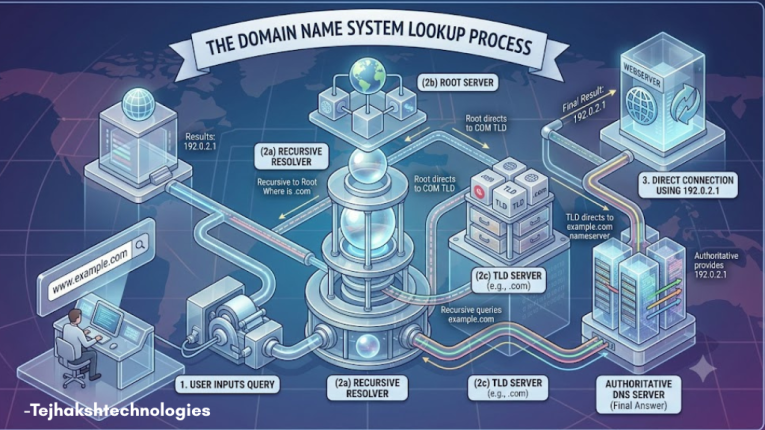
When you enter a website address in your browser, DNS follows a series of steps to find the correct IP address.
Step 1: Enter the Website URL
You type a website address (such as www.google.com) into your browser.
Step 2: Check the Cache
Your browser and DNS Resolver first check their cache to see if the IP address is already saved. If it is, the website opens immediately.
Step 3: Contact the Root Server
If the IP address is not found, the DNS Resolver sends a request to the Root Server, which directs it to the correct Top-Level Domain (TLD) Server.
Step 4: Contact the TLD Server
The TLD Server identifies the correct Authoritative DNS Server for the requested domain.
Step 5: Get the IP Address
The Authoritative DNS Server returns the correct IP address of the website to the DNS Resolver.
Step 6: Browser Receives the IP Address
The DNS Resolver sends the IP address back to your browser.
Step 7: Website Opens
Your browser connects to the website’s server using the IP address, and the webpage loads on your screen.
Types of DNS Queries
A DNS Query is a request sent to the DNS system to find the IP address of a website. There are three main types of DNS queries.
1. Recursive Query
In a Recursive Query, the DNS Resolver takes full responsibility for finding the correct IP address. It searches different DNS servers until it gets the exact answer or returns an error if the website cannot be found.
Example: When you type www.google.com in your browser, the DNS Resolver performs all the necessary searches and returns the correct IP address.
2. Iterative Query
In an Iterative Query, the DNS server does not search for the complete answer. Instead, it directs the requester to another DNS server that may have the required information. This process continues until the correct IP address is found.
3. Non-Recursive Query
A Non-Recursive Query occurs when the DNS server already has the requested IP address in its cache or is the authoritative server for that domain. In this case, it returns the answer immediately without contacting other DNS servers.
Common DNS Record Types
DNS Records are special instructions stored in a domain’s DNS settings. They tell the internet how to connect your domain to websites, email services, and other online resources.
1. A Record (Address Record)
Maps a domain name to an IPv4 address.
Example: example.com → 192.168.1.1
2. AAAA Record (IPv6 Address Record)
Maps a domain name to an IPv6 address.
Example: example.com → 2001:db8::1
3. CNAME Record (Canonical Name)
Points one domain or subdomain to another domain name.
Example: www.example.com → example.com
4. MX Record (Mail Exchange)
Directs emails to the correct mail server for your domain.
Example: info@example.com
5. TXT Record (Text Record)
Stores text information for domain verification and email security (SPF, DKIM, DMARC).
6. NS Record (Name Server)
Specifies the Name Servers responsible for managing a domain’s DNS records.
DNS Security
DNS Security helps protect users from cyberattacks and ensures that websites open safely and correctly.
1. DNS Spoofing (Cache Poisoning)
DNS Spoofing is a cyberattack in which hackers insert fake DNS information into a DNS server’s cache. As a result, users may be redirected to a fake website instead of the real one, putting their personal information, usernames, and passwords at risk.
2. DDoS (Distributed Denial of Service)
A DDoS attack floods DNS servers with a huge number of fake requests. This overload can slow down or crash the servers, making websites unavailable to users.
3. DNSSEC (Domain Name System Security Extensions)
DNSSEC is a security feature that protects DNS records using digital signatures. It helps verify that the DNS information is genuine and has not been modified, making internet browsing safer and more secure.
Conclusion
The Domain Name System (DNS) is one of the most important technologies behind the internet. It converts easy-to-remember domain names into IP addresses, allowing users to access websites quickly and easily without remembering complex numbers.
Understanding how DNS works, its structure, servers, queries, and security features helps you better understand how websites are found and loaded on the internet. Whether you are a student, web developer, website owner, or simply an internet user, having basic knowledge of DNS is essential for understanding how the web works.
Leave a Comment