

- November 25, 2026
- Tejhaksh
- 0 Comments
- Uncategorized
What Is Google Cloud Console? Features, Benefits, Uses & Complete Beginner’s Guide
Cloud computing has become an essential part of modern businesses, helping organizations store data, run applications, manage infrastructure, and improve their digital operations. Among the leading cloud platforms, Google Cloud offers a wide range of services for developers, startups, enterprises, and IT professionals.
But how can users access and manage these services from one place? This is where Google Cloud Console comes in.
Google Cloud Console is a web-based management interface that allows users to create projects, manage cloud resources, configure services, monitor performance, control access, and track billing. Whether you are a beginner exploring cloud computing or an experienced developer managing complex applications, Google Cloud Console makes cloud management more accessible.
In this complete beginner’s guide, we will explain what Google Cloud Console is, its features, benefits, components, working process, account setup, and how it differs from Google Cloud Platform.
What Is Google Cloud Console?
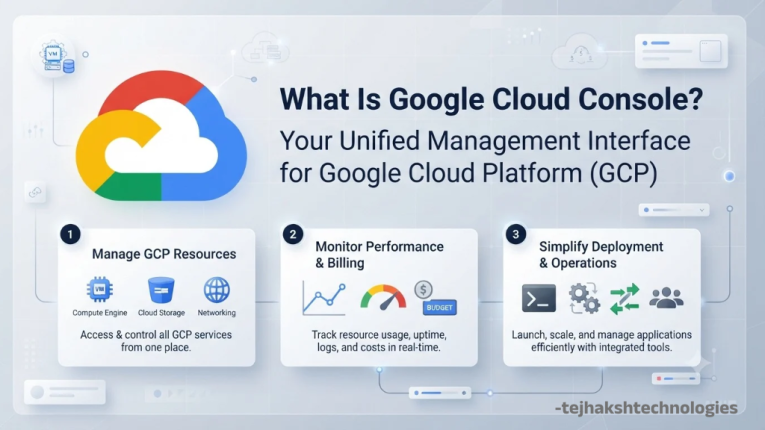
Google Cloud Console is a web-based graphical user interface (GUI) provided by Google to manage and monitor Google Cloud services and resources. It allows users to interact with cloud infrastructure without relying entirely on command-line tools or writing code.
Users can access Google Cloud Console through a web browser by visiting:
https://console.cloud.google.com/
After signing in with a Google account, users can create and manage projects, launch virtual machines, configure databases, manage storage, enable APIs, monitor application performance, and control user permissions.
For example, if a business wants to host its website on Google Cloud, it can use the console to create a Compute Engine virtual machine, configure networking, connect storage, and monitor resource usage.
Google Cloud Console provides a centralized interface for managing different Google Cloud products, including:
- Google Compute Engine
- Google Cloud Storage
- Google Kubernetes Engine (GKE)
- BigQuery
- Cloud SQL
- Cloud Functions
- Google Cloud Networking
- Identity and Access Management (IAM)
It is important to understand that Google Cloud Console is not a separate cloud platform. Instead, it is the management interface used to access and control services available through Google Cloud.
Features of Google Cloud Console
Google Cloud Console offers several features that simplify cloud infrastructure management. These features help developers, businesses, and IT administrators manage their resources efficiently.
Let’s explore some of its most important features.
1. Project Management
Project management is one of the primary features of Google Cloud Console. Users can create multiple projects to organize their cloud resources according to different applications, departments, or business requirements.
For example, a company can create separate projects for website hosting, mobile applications, testing environments, and data analytics.
Each project has its own project name, project ID, and project number.
2. Resource Management
Google Cloud Console allows users to create, configure, update, and manage different cloud resources from a single interface.
Users can manage virtual machines, storage buckets, databases, networking services, and other cloud infrastructure components.
This makes it easier to maintain applications and manage infrastructure without switching between multiple management platforms.
3. Cloud Storage Management
Cloud Storage is another important feature available through Google Cloud Console.
Users can create storage buckets, upload files, download data, organize objects, and manage access permissions.
Businesses can use Cloud Storage to store documents, images, videos, application backups, and large datasets.
4. API Management
Google Cloud provides APIs that allow applications to communicate with different cloud services.
Through Google Cloud Console, users can enable APIs, manage API access, monitor usage, and configure credentials.
For example, developers building applications with Google Maps Platform or other Google Cloud services may need to enable the relevant APIs before using them.
5. Security and Access Management
Google Cloud Console includes Identity and Access Management (IAM), which helps administrators control who can access cloud resources.
Users can assign different roles and permissions to team members according to their responsibilities.
For example, a developer may receive permission to manage application resources, while a finance team member may only need access to billing information.
6. Monitoring and Performance Tracking
Google Cloud Console provides access to monitoring and observability tools that help users understand how their applications and infrastructure are performing.
Depending on the services being used, users can monitor:
- CPU utilization
- Memory usage
- Network activity
- Application performance
- System logs
- Error reports
- Resource availability
These insights help businesses identify technical issues and improve application performance.
7. Billing and Cost Management
Cloud spending is an important consideration for every organization.
Google Cloud Console provides billing tools that allow users to review expenses, monitor resource costs, analyze billing reports, and create budget alerts.
These features help businesses understand where their money is being spent and identify opportunities to optimize cloud expenses.
8. Cloud Shell Access
Cloud Shell is a browser-based command-line environment available through Google Cloud Console.
It allows developers to execute commands, manage resources, run scripts, and interact with Google Cloud services without installing the Google Cloud CLI locally.
It is especially useful for developers who prefer working with command-line tools.
Benefits of Google Cloud Console
Google Cloud Console provides several benefits for individuals, developers, startups, and large organizations.
Here are the major advantages of using Google Cloud Console.
1. Easy-to-Use Interface
One of the biggest benefits of Google Cloud Console is its user-friendly graphical interface.
Users can access different cloud services through menus, dashboards, search tools, and configuration pages.
Even beginners can perform many cloud management tasks without having advanced command-line knowledge.
2. Centralized Cloud Management
Google Cloud Console brings multiple cloud management tools together in one place.
Instead of accessing separate platforms for storage, computing, databases, networking, and billing, users can manage these services through a centralized interface.
This improves workflow efficiency and saves time.
3. Better Security Management
Security is essential when managing business applications and sensitive information.
Google Cloud Console provides IAM permissions, security configurations, and access management features that help organizations protect their resources.
Administrators can control user access and assign permissions based on specific responsibilities.
4. Improved Productivity
The console simplifies repetitive cloud management activities by providing graphical controls and centralized resource management.
Developers can create resources, configure services, monitor applications, and troubleshoot issues more efficiently.
5. Cost Monitoring and Budget Control
Google Cloud Console provides billing reports and budget management tools that help organizations monitor their cloud expenses.
Businesses can analyze spending patterns, identify expensive services, and set budget alerts to receive notifications when costs reach selected thresholds.
Remember that budget alerts notify users about spending; they do not automatically stop cloud services or cap expenses.
6. Scalability and Flexibility
As a business grows, its cloud infrastructure requirements may also increase.
Google Cloud Console makes it easier to access scalable Google Cloud services and adjust resources according to application requirements.
Businesses can expand their infrastructure without managing every component through physical hardware.
7. Better Resource Visibility
The console provides access to information about cloud projects, services, resources, billing, and system activity.
This visibility helps administrators understand their infrastructure and make informed management decisions.
How to Use Google Cloud Console?
Using Google Cloud Console is relatively simple once you understand its basic navigation and functions.
Follow these steps to get started.
Step 1: Open Google Cloud Console
Visit the official Google Cloud Console website:
https://console.cloud.google.com/
Sign in using your Google account.
Step 2: Select or Create a Project
After signing in, select an existing project or create a new one.
Projects help organize your cloud resources and services.
For example, you can create a project named “Business Website” to manage the infrastructure of your company website.
Step 3: Explore the Navigation Menu
Open the navigation menu to explore different Google Cloud services.
You will find options related to computing, storage, databases, networking, security, APIs, and billing.
Choose the service according to your requirements.
Step 4: Enable the Required API
Some Google Cloud services require specific APIs to be enabled before you can use them.
Open the APIs & Services section, search for the API you need, and enable it for your selected project.
Step 5: Create a Cloud Resource
Select the service you want to use.
For example, if you want to create a virtual machine, open Compute Engine and navigate to the VM instances section.
Configure the machine according to your requirements and create the resource.
Step 6: Configure Security and Permissions
Use IAM to manage user access and permissions.
Assign suitable roles to team members and avoid providing unnecessary administrative access.
Step 7: Monitor Your Resources
Use the available monitoring and logging tools to check resource performance, application activity, and system health.
You can also visit the Billing section to review cloud spending.
How to Set Up a Google Cloud Console Account?
Setting up a Google Cloud Console account is straightforward. You do not need to download or install separate software because the console works through a web browser.
Follow these steps to set up your account.
Step 1: Create or Sign In to a Google Account
First, make sure you have an active Google account.
If you do not have one, create a Google account before proceeding.
Step 2: Visit the Google Cloud Website
Open the official Google Cloud website and select the option to get started.
You can also visit Google Cloud Console directly:
https://console.cloud.google.com/
Step 3: Start Your Google Cloud Setup
Sign in using your Google account and follow the on-screen instructions.
Depending on your eligibility and account requirements, Google may ask you to provide payment and billing information.
Step 4: Create Your First Project
Once you enter the console, create a new project.
Provide a suitable project name and select the organization or location settings if applicable.
Google Cloud automatically generates a unique project ID and project number.
Step 5: Configure Billing
To use most Google Cloud services, you need an active Cloud Billing account linked to your project.
Follow the billing setup instructions and select an appropriate payment method.
New customers may be eligible for Google’s free trial offer, which currently advertises $300 in free credits and access to free usage of selected products. Always review the latest eligibility requirements and offer terms before signing up.
Step 6: Enable Cloud Services
After creating your project and configuring billing, enable the APIs and services required for your application.
For example, developers working with virtual machines may need to enable the Compute Engine API.
Step 7: Start Managing Cloud Resources
You can now explore the available services and create resources according to your requirements.
Important: Always monitor billing, configure security permissions, and delete unused resources to avoid unnecessary expenses.
Effective Tips for Using Google Cloud Console
To manage cloud resources efficiently, follow these simple tips:
- Organize Projects: Keep development, testing, and production projects separate for better management.
- Manage IAM Permissions: Give team members only the access they need to perform their tasks.
- Track Cloud Costs: Review billing reports and set budget alerts to avoid unexpected expenses.
- Enable Necessary APIs: Activate only the APIs required for your applications.
- Use Cloud Shell: Run commands and manage cloud resources directly from your browser.
- Monitor Performance: Use Cloud Monitoring and Cloud Logging to detect errors and performance issues.
- Strengthen Security: Use strong authentication and regularly review user permissions.
- Remove Unused Resources: Delete unnecessary cloud resources to reduce extra costs.
- Follow Official Documentation: Use Google’s guides and tutorials to learn features and solve technical problems.
These practices can help you maintain a secure, organized, and cost-efficient Google Cloud environment.
How Google Cloud Console Works
Google Cloud Console acts as a control panel that connects users with Google Cloud services. It allows users to create, manage, and monitor cloud resources through a simple web interface.
Here is how it works step by step:
- Sign In: Log in to Google Cloud Console using your Google account.
- Choose a Project: Select an existing project or create a new one.
- Select a Service: Choose the service you need, such as Compute Engine, Cloud Storage, or BigQuery.
- Set Up Resources: Configure the required options, including storage, server size, region, and permissions.
- Process the Request: The console sends your request to the selected Google Cloud service.
- Create Resources: Google Cloud processes the request and creates or updates the required resource.
- Monitor Activity: View resource details, check performance, and manage your services directly from the console.
Example: If you want to create a virtual machine, simply open Compute Engine, choose your machine settings, and submit the request. Google Cloud will process it and create your virtual machine.
In short, Google Cloud Console makes cloud management easier by allowing users to control different services from one place without handling everything manually.
Google Cloud Console Components
Google Cloud Console includes several interface components that help users navigate and manage their cloud environment.
Understanding these components makes it easier to work with different Google Cloud services.
1. Dashboard and Cloud Hub
The dashboard provides an overview of important cloud resources, project information, activity, and other relevant details.
Google is transitioning its console overview experience toward Cloud Hub. According to Google’s release notes, the legacy Dashboard is scheduled for removal in May 2027.
Cloud Hub provides a more comprehensive view of applications and resources, including relevant health, troubleshooting, and optimization information.
2. Navigation Menu
The navigation menu helps users access different Google Cloud products and services.
It includes categories such as:
- Compute
- Storage
- Networking
- Databases
- Security
- APIs & Services
- Monitoring
- Billing
Users can open the relevant service directly from this menu.
3. Project Selector
The project selector allows users to switch between different Google Cloud projects.
This is particularly useful for developers and businesses managing multiple applications or environments.
4. Search Bar
The search bar helps users quickly locate Google Cloud services, resources, documentation, and other available options.
Instead of manually exploring multiple menus, users can search for a specific service.
5. Cloud Shell
Cloud Shell provides browser-based terminal access for managing cloud resources through commands.
It is useful for developers, administrators, and technical users who prefer command-line operations.
6. Notifications
The notification area displays relevant messages and alerts related to Google Cloud services and account activity.
Users can review notifications to stay informed about important events.
7. Help and Support
The help and support section provides access to documentation, troubleshooting resources, learning materials, and support options depending on the user’s account and support plan.
What Is the Toolbar in Google Cloud Console?
The toolbar in Google Cloud Console provides quick access to important tools and navigation options. It helps users find services, switch projects, manage resources, and access support easily.
Key Toolbar Elements:
- Navigation Menu: Opens different Google Cloud services and tools.
- Project Selector: Helps switch between cloud projects.
- Search Bar: Quickly finds services, resources, and documentation.
- Cloud Shell: Opens a browser-based terminal to run commands.
- Notifications: Displays important alerts and updates.
- Help & Support: Provides access to guides and troubleshooting resources.
- Account Profile: Allows users to manage account settings and sign out.
These toolbar options make navigating and managing Google Cloud Console faster and more convenient.
Google Cloud Platform vs. Google Cloud Console
Google Cloud Platform (GCP) and Google Cloud Console are related but serve different purposes.
– Google Cloud Platform (GCP): A cloud computing platform that provides services such as computing, storage, databases, networking, AI, and analytics.
– Google Cloud Console: A web-based interface used to access, configure, manage, and monitor Google Cloud services.
Key Differences
- Meaning: GCP is a cloud platform, while Google Cloud Console is its graphical management interface.
- Purpose: GCP provides cloud infrastructure and services, whereas the Console helps users manage those services.
- Function: GCP runs applications and stores data, while the Console helps create, configure, and monitor resources.
- Access: GCP services can be accessed through the Console, CLI, APIs, and libraries. Google Cloud Console is accessed through a web browser.
- Users: GCP is used by developers, businesses, and IT teams. The Console is useful for developers, administrators, and beginners.
- Services: GCP offers computing, storage, databases, AI, and networking services. The Console provides a centralized way to manage them.
- Interface: GCP includes multiple cloud services and tools, while Google Cloud Console provides a single graphical interface for managing them.
Which One Should You Use?
You do not need to choose between Google Cloud Platform and Google Cloud Console because they work together.
If you want to build applications, store data, run virtual machines, or use cloud computing infrastructure, you need Google Cloud services.
If you want to manage those services through a graphical interface, Google Cloud Console is a convenient option.
Developers who prefer automation can also use Google Cloud CLI, REST APIs, client libraries, and infrastructure-as-code tools.
Frequently Asked Questions (FAQs)
1. What is Google Cloud Console used for?
Google Cloud Console is used to create, manage, configure, and monitor Google Cloud resources. It provides access to services such as virtual machines, cloud storage, databases, networking, APIs, security, and billing.
2. Is Google Cloud Console free to use?
Accessing Google Cloud Console through a browser does not require a separate software purchase. However, the cloud resources and services you use may involve charges. Google also provides free usage offers and trial credits to eligible new customers.
3. How do I access Google Cloud Console?
You can access Google Cloud Console by visiting https://console.cloud.google.com/ and signing in with your Google account.
4. Do I need coding knowledge to use Google Cloud Console?
No. Many tasks can be completed through its graphical interface without writing code. However, knowledge of programming, command-line tools, and cloud infrastructure can be useful for advanced operations.
5. What is the difference between Google Cloud Console and Google Cloud Shell?
Google Cloud Console is the browser-based graphical management interface. Google Cloud Shell is a browser-based command-line environment that allows users to execute commands and manage cloud resources.
6. Can beginners use Google Cloud Console?
Yes. Beginners can use Google Cloud Console to create projects, explore cloud services, manage storage, and learn cloud computing. Google’s official documentation and tutorials can help users understand individual services.
7. Is Google Cloud Console secure?
Google Cloud Console provides security and access management features, including Identity and Access Management (IAM). However, users must configure permissions correctly, protect their accounts, and follow security best practices.
8. What are the main components of Google Cloud Console?
Important components include the navigation menu, project selector, search bar, Cloud Shell, notifications, account profile, and the dashboard or Cloud Hub experience.
9. What is the difference between Google Cloud Console and Google Cloud Platform?
Google Cloud Platform is the cloud computing platform that provides infrastructure and services. Google Cloud Console is the web-based interface used to manage those services.
10. Can I manage multiple projects through Google Cloud Console?
Yes. Google Cloud Console allows users to create, access, and switch between multiple projects, depending on their permissions.
Conclusion
Google Cloud Console makes managing cloud services simple and convenient. It allows users to create projects, manage resources, control access, monitor performance, and track expenses from one place.
With useful tools like Cloud Shell, IAM, billing reports, and resource monitoring, it helps businesses and developers manage their cloud infrastructure more efficiently.
Whether you are new to cloud computing or an experienced developer, Google Cloud Console can make your work easier. Start exploring its features, manage your projects, and follow good security practices to get the most out of Google Cloud.
Leave a Comment